PRODUCTION SANDBOX · GETTING STARTED
A clearer plan.
A calmer production.
Find the work, compare crew costs, and follow the dependencies before changing the plan. Get comfortable with the sandbox in seven short lessons, recorded with the actual sample data and screen layout.
Before you move a task
Check the strip above the timeline. Sample production means you’re practicing: changes do not write to ShotGrid and reset when the sample is reloaded. A connected live schedule can write assignments and dates when you choose Commit … to ShotGrid.
Open Production Sandbox in the workspace sidebar. Keep it in one tab and this guide in another.
LESSON 01 / 07
Find your work
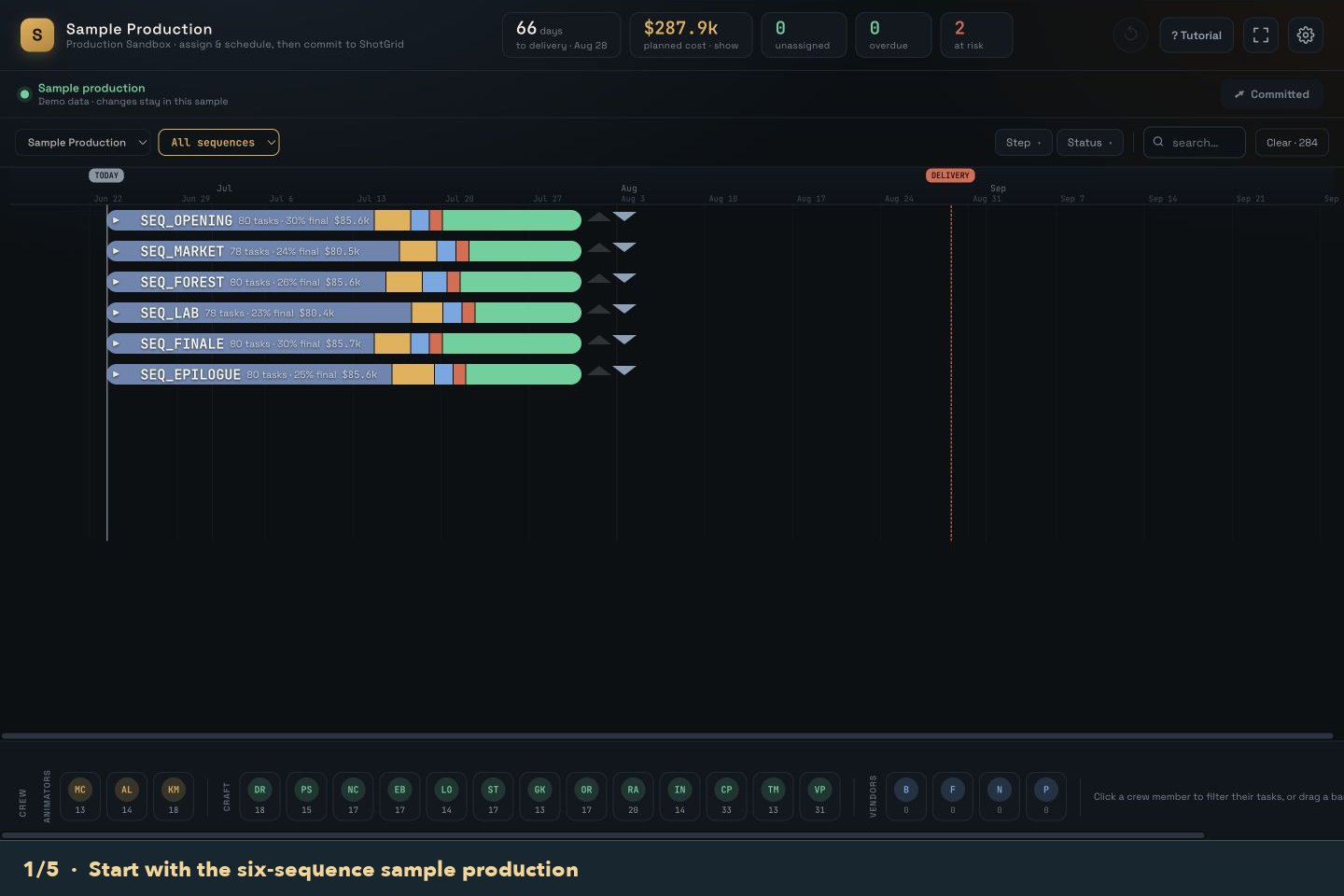
Start with a smaller slice of the production.
Choose a sequence or episode
Use All sequences or All episodes to focus the timeline on one part of the production.
Open the work
Click the triangle beside a row to reveal the entities and tasks below it.
Narrow the results
Search for a code or task name. Use Step and Status for another filter, or Clear to reset the view.
Field note Try it: find SEQ_OPENING in the sample and expand a row.
LESSON 02 / 07
Put the right person on the task
Make an assignment without losing the schedule context.
Find the task bar
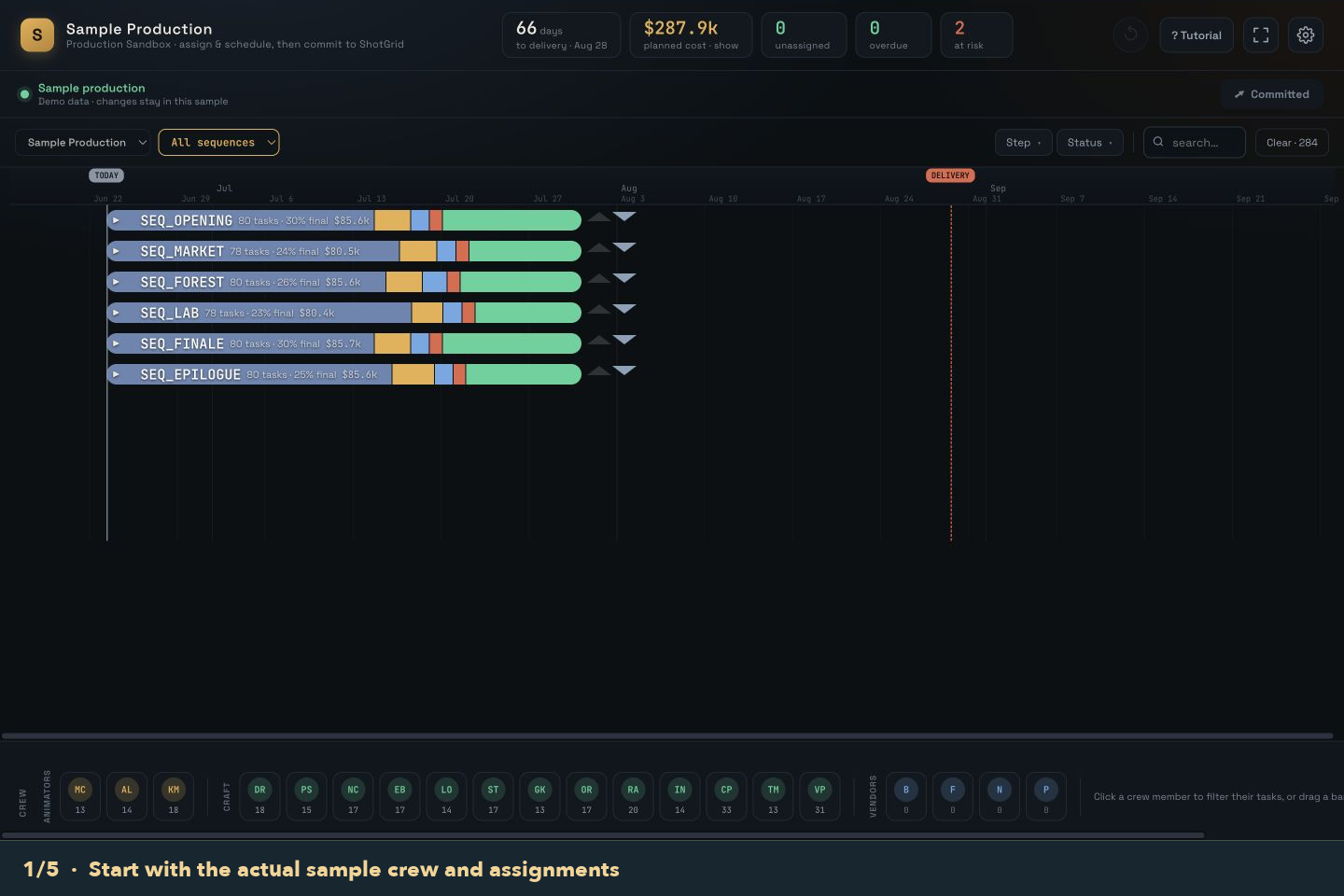
Expand a sequence and entity until you can see the task you want to assign.
Drag to a crew member
Drag the task bar down onto a person in the crew strip. The assignment changes inside the sandbox.
Check the workload
Click a crew member to filter their tasks. Click them again or use Clear to return to the full view.
Field note Try it: assign one sample task, then use Undo to put it back.
LESSON 03 / 07
Compare costs before you assign
Drag a task toward the crew rail to see the cost of assigning it to eligible people.
Look for the yellow estimates
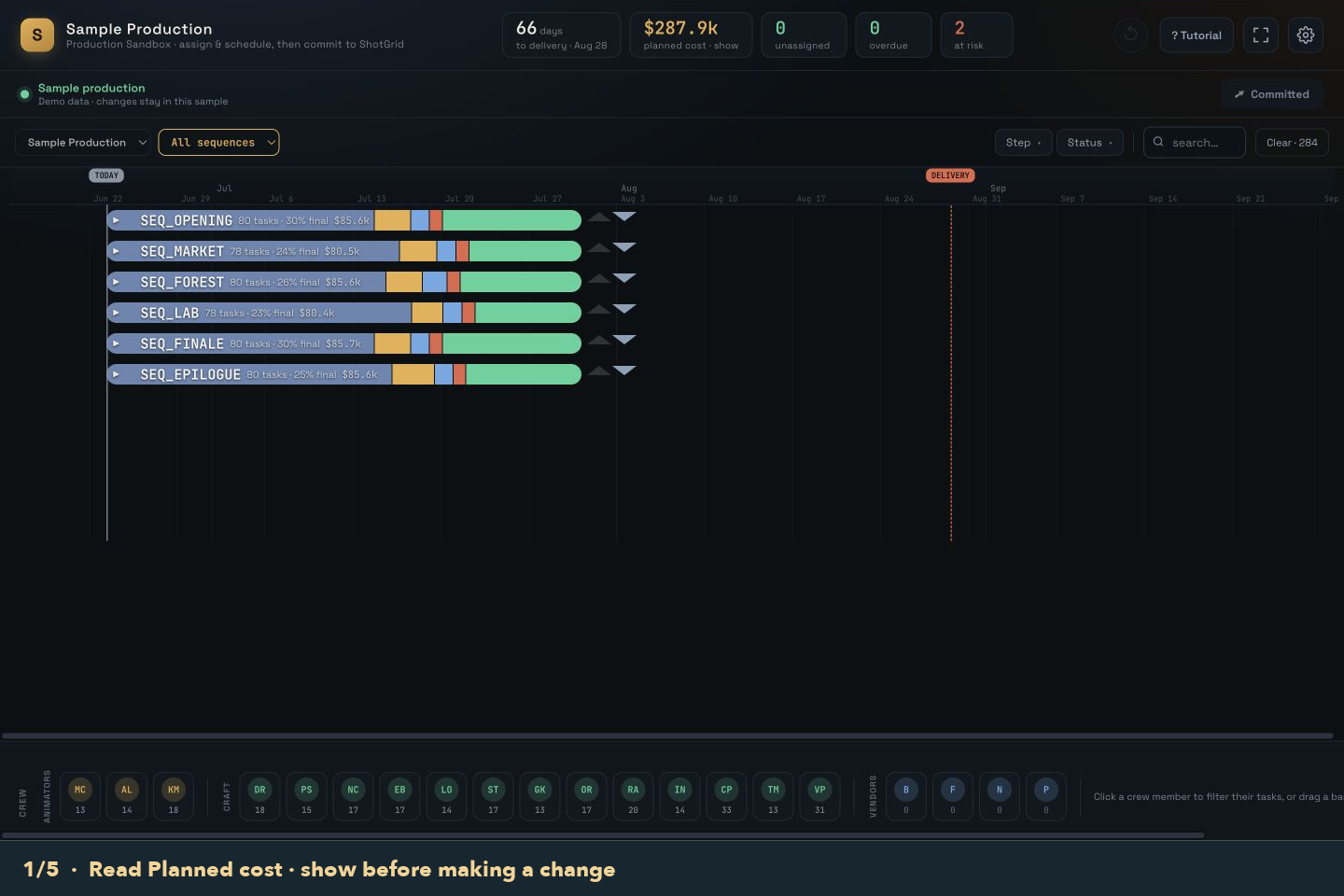
While dragging over the crew rail, eligible crew members show a +$ estimate. Compare their rates and estimates before releasing the task. Dimmed crew members may not be eligible.
Drop, then check the budget
After assigning, compare the show’s Planned cost with the previous total. Select the task to see its COST card, or read the task and rollup costs beside the bars.
Compare another option
Use Undo to restore the previous assignment, then try another person. In the recording, assigning the Animation task to Maya changes the show estimate from $287.9k to $291.0k; Undo restores it.
Field note The +$ label is an assignment estimate, not the net change to the show total. Reassigning also removes work from the previous person; weekly booking and shared workdays can affect the final result.
Read the budget at three levels
Planned cost · show is the whole production estimate, even in a filtered or isolated view. Row totals summarize the work in that row; a shared asset can appear in more than one context, so do not add every visible row together as a new show total. Selected task → COST shows the task’s allocated share.
Unassigned tasks contribute no assigned cost. A low total with unassigned work is not a complete production budget. The recordings use the bundled sample production and its actual estimates.
LESSON 04 / 07
Understand why moving work changes cost
Dates, durations, rates, and booking overlap all affect the plan.
Watch the total as you move
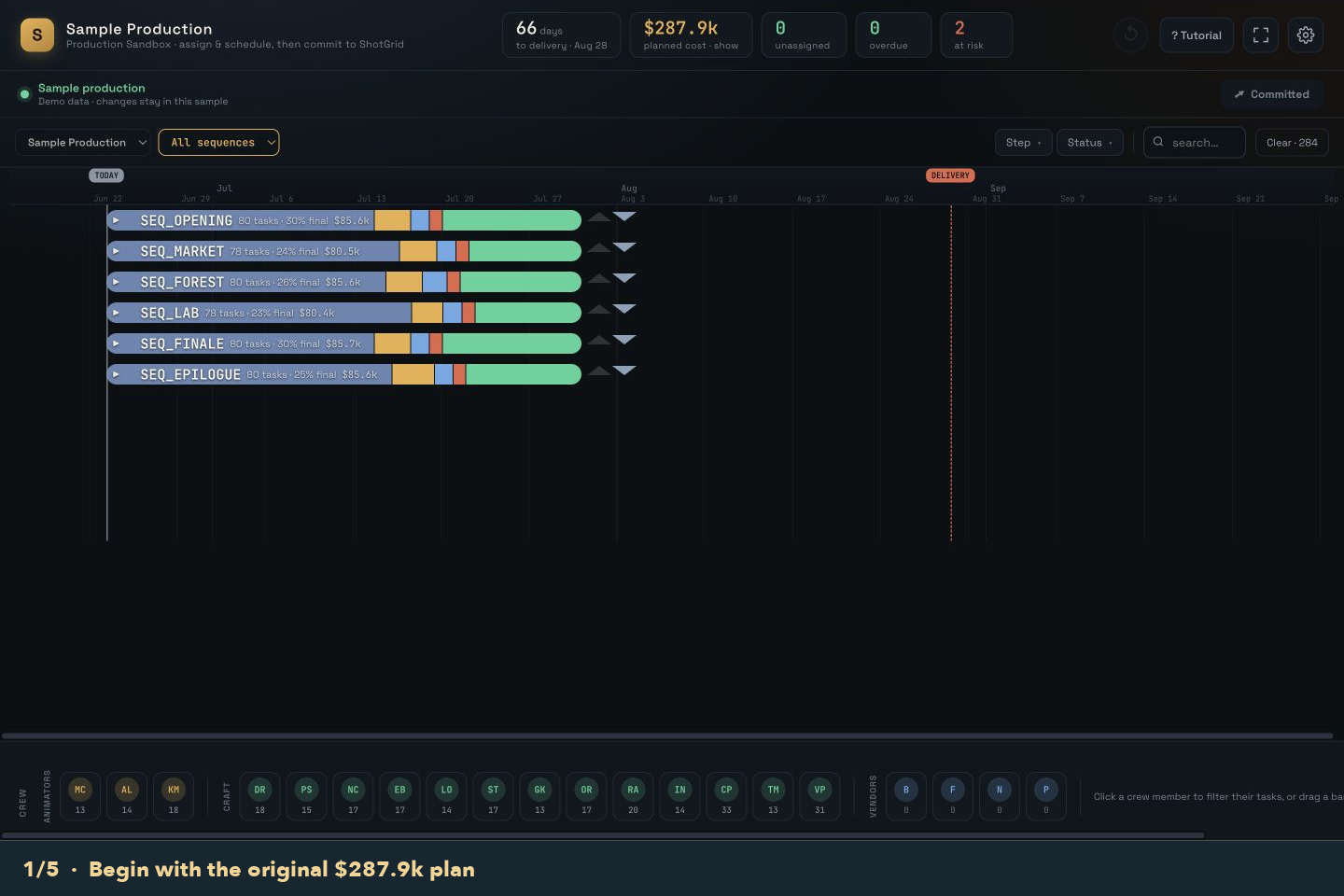
Move or resize an assigned task, then review Planned cost and the task COST card. Dependent tasks may move too, changing other people’s bookings.
Check the rate type
Footage-based work uses a per-second rate. Vendors use distinct booked working days. Weekly crew use the span from their first task start to their last task finish, rounded up to whole weeks.
Use Undo to compare
Undo the change and compare the totals. A move within the same booking can leave the total unchanged; extending a weekly booking into another week can increase it.
Field note For weekly crew, the rail’s +$ estimate uses additional working days at a daily equivalent. The final show total uses whole booking weeks, so those two numbers can differ.
What each rate means
- Per second
- Rate × task footage. If footage is missing, the current estimate uses six seconds per duration day. Moving a task without changing its footage may leave this cost unchanged.
- Per day · vendors
- One charge per distinct booked working day for that vendor, shared across overlapping assignments. Moving work onto new days can add cost.
- Per week · crew
- Whole calendar weeks covering the first start through the last finish, including gaps, with a one-week minimum. That booking cost is allocated across the person’s tasks.
LESSON 05 / 07
See what a date change affects
Move one task and understand the work that follows it.
Check Settings
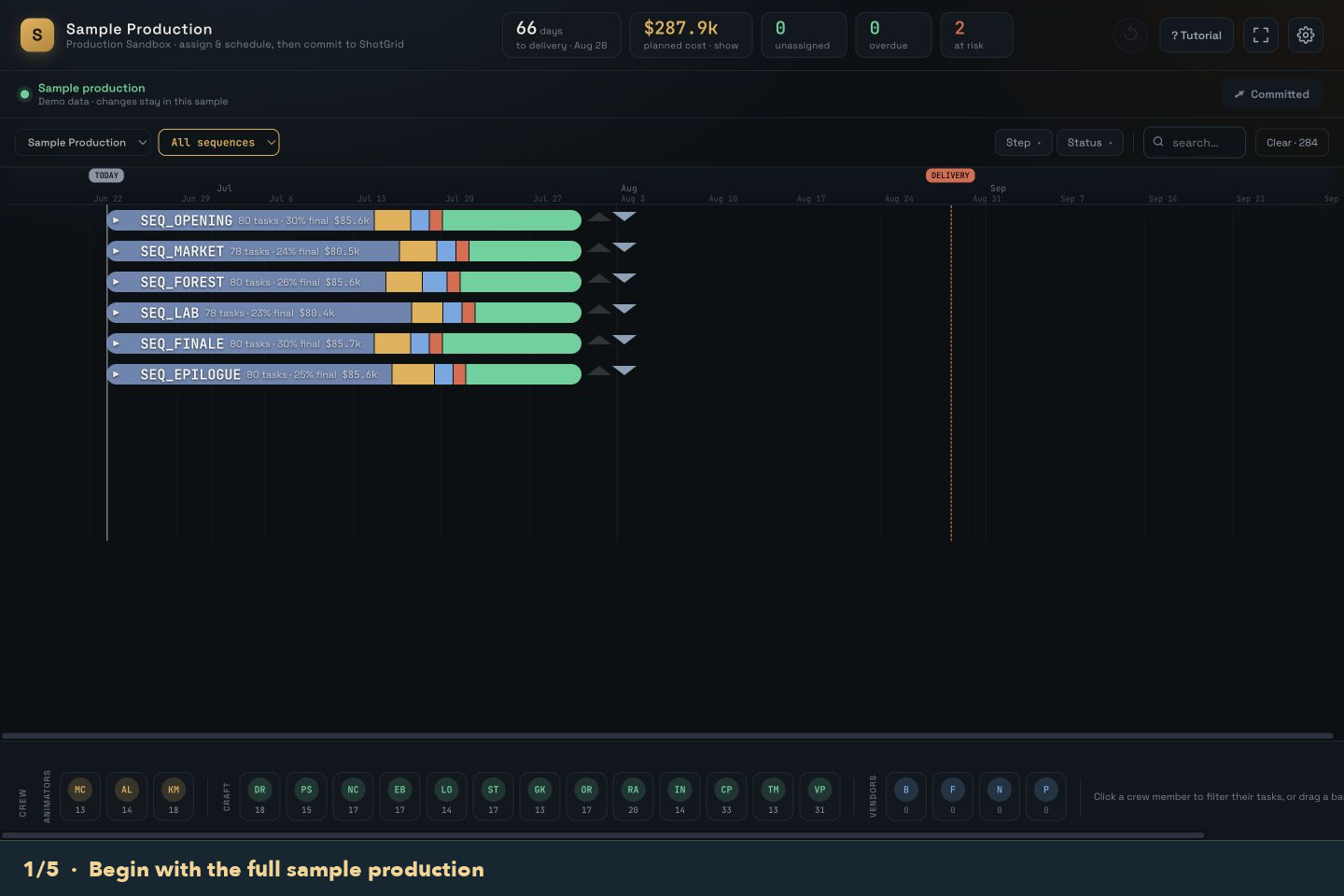
Turn on Adjust dependencies to move dependent tasks with your change. Dependency links only controls whether connectors are shown.
Move or resize a bar
Drag the middle of a task bar to change its start. Drag a bar edge to adjust its duration.
Inspect the result
Review downstream tasks and the at-risk count. With Adjust dependencies off, conflicts are flagged rather than moved.
Field note Need an earlier date? Allow backdating in Settings permits starts before today.
LESSON 06 / 07
Step into a dependency view
Use the small triangles beside timeline rollups to see what a shot needs or what an asset affects.
Enter upstream from a shot
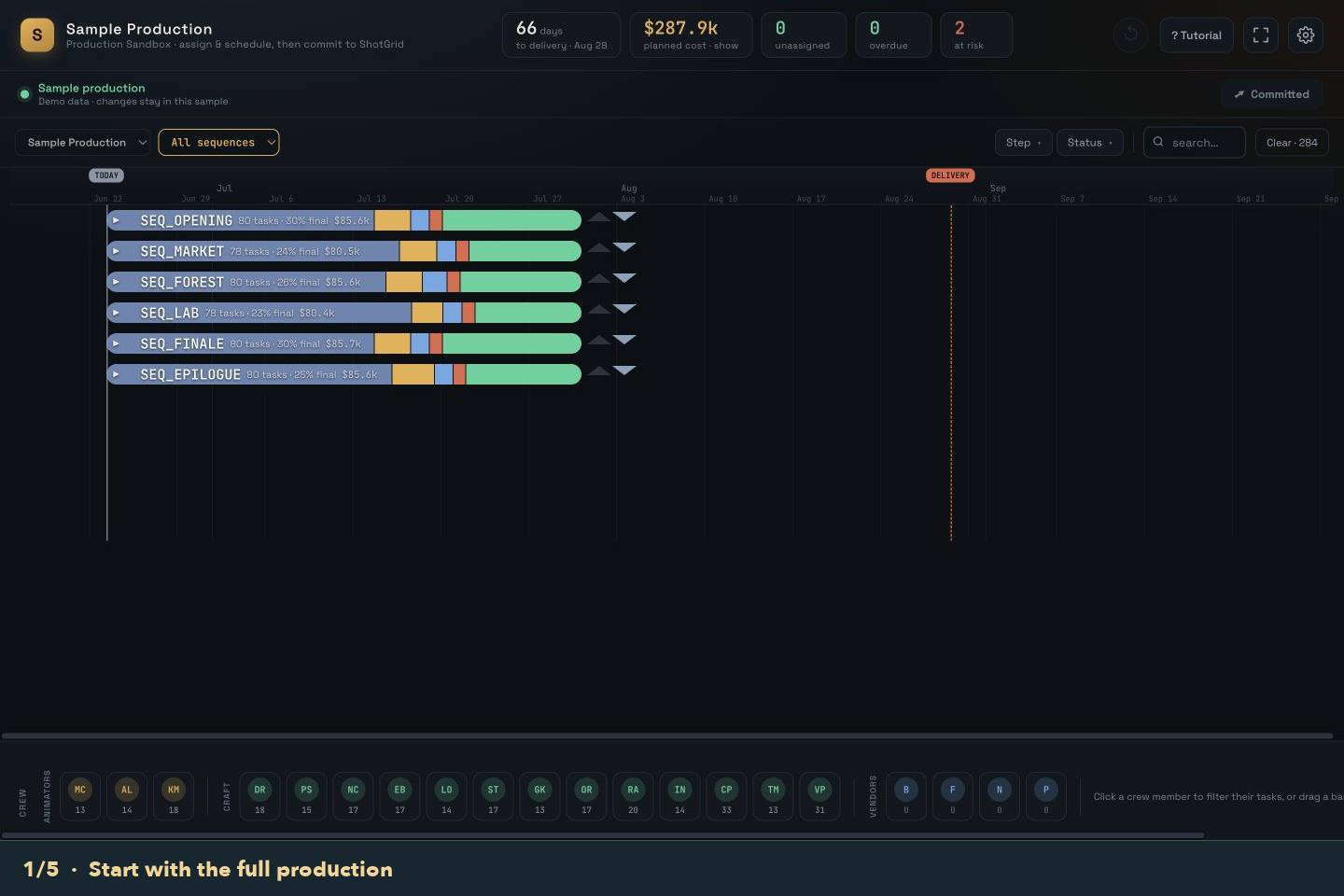
Hover the upward triangle to see Isolate upstream, then click it. The focused view shows REQUIRED ASSETS and the selected shot, and fits the timeline to that work.
Read what is holding it up
Expand the rows to inspect their tasks. In a selected shot task’s panel, MUST FINISH FIRST · ASSETS lists the required assets and progress. A “sets shot start” marker identifies a gating asset.
Return to the production
Click Show everything in the isolation banner, or click the same active triangle again. This exits isolation; any separate sequence, search, or status filters can still apply.
Field note Clear resets the ordinary filters; Show everything exits dependency isolation. If work still seems missing, exit isolation, choose All sequences / All episodes, and then Clear.
Look downstream: what uses this asset?
Choose the downward triangle
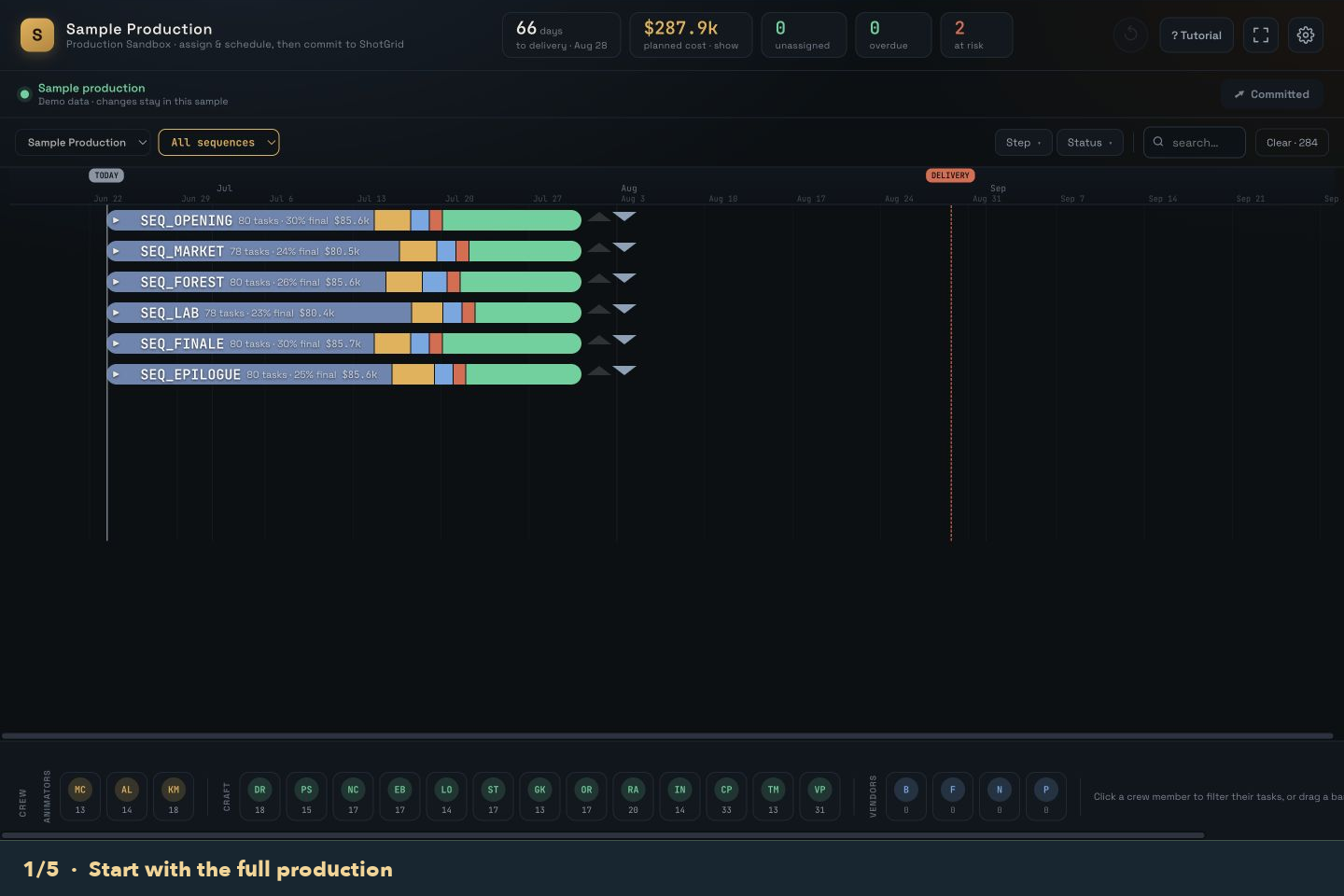
On an asset row, Isolate downstream shows that asset and the shots that use it. On a sequence row, the downward triangle shows its contained shots. Dim triangles have no available relationship to open.
Jump to affected work
In the selected asset task panel, GATES THESE SHOTS lists where it is used, when each shot starts, and any gating marker. Click a shot entry to select its work. In a shot panel, click a required asset to inspect its work.
Switch or leave the view
Opening the opposite direction replaces the current isolation; the views do not stack. If a panel jump points outside the focused view, use Show everything to reveal the wider context.
Three different dependency tools
Isolation triangles focus the visible rows. Dependency links in Settings shows connectors between selected and related visible tasks. Adjust dependencies controls whether downstream tasks move when you change the schedule.
In the task panel, Depends on selects the preceding task in its chain. This is different from opening a shot’s required-asset view. Opening a view or selecting a linked item does not change the schedule.
LESSON 07 / 07
Review before you commit
Keep experimentation separate from live production updates.
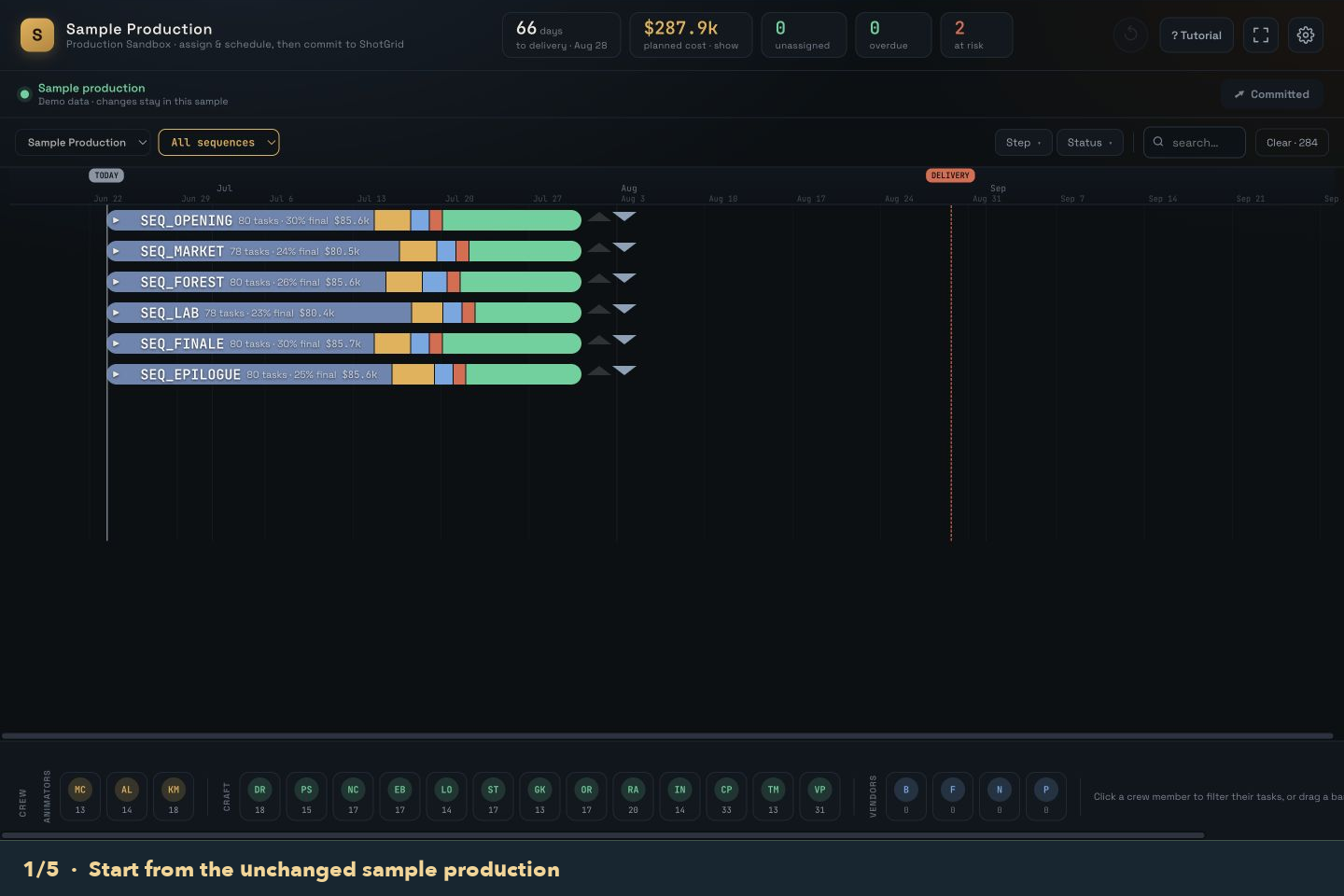
Read the changes strip
Assignments and schedule edits appear as pending changes. Check the affected work before saving.
Undo or discard
Click Undo for one action, or press Ctrl/⌘ + Z. Discard restores the last committed baseline for your pending edits.
Choose the right save action
Save sample changes only updates the demo baseline for this session. Commit … to ShotGrid writes the pending assignments and dates to your connected site.
Field note A sample is not a saved project. Reloading it starts a fresh practice session.
KEEP THIS CLOSE
A few useful details
How do I get more room for the timeline?
Use the Fullscreen button beside Undo in the sandbox header. Press Escape to leave fullscreen. Scroll horizontally to see more dates.
What is the difference between dependency settings?
Dependency links shows connectors for a selected task. Adjust dependencies changes scheduling behavior: dependent tasks move with your changes when enabled; conflicts are flagged when it is disabled.
What do the numbers at the top mean?
Planned cost reflects the current schedule and assignments. Unassigned identifies work without a person. Overdue and At risk help you focus your review. Click the work-count cards to filter the timeline.
Why am I seeing sample data?
The sample is used for active trials and sandbox-eligible accounts without a complete Flow connection. It also appears when a live project has no usable schedule or cannot be loaded. Check the sample banner and Site Config before expecting a live production.
Will changing a status here update ShotGrid?
The current commit action sends task assignments, start dates, and due dates. Do not rely on a status change in the sandbox to update ShotGrid.
Can I read this without playing the GIFs?
Yes. Every walkthrough has a still preview and full written steps. Animations never start automatically. Stop returns to the still preview; Play restarts the walkthrough.
YOUR NEXT STEP
Try one small change.
Find a task in the sample. Compare its cost, explore its dependencies, then try a change and undo it.
That’s the core workflow.